Connect your CRM
The sync replaces the weekly CSV ritual: connect once and the boards stay current on their own. Three promises up front — the connection is read-only (Grit Board never writes to your CRM), nothing syncs until you’ve reviewed exactly what it reads, and disconnecting deletes the access tokens. CRM sync is included on paid plans; the free tier runs on CSV import.
01Connecting
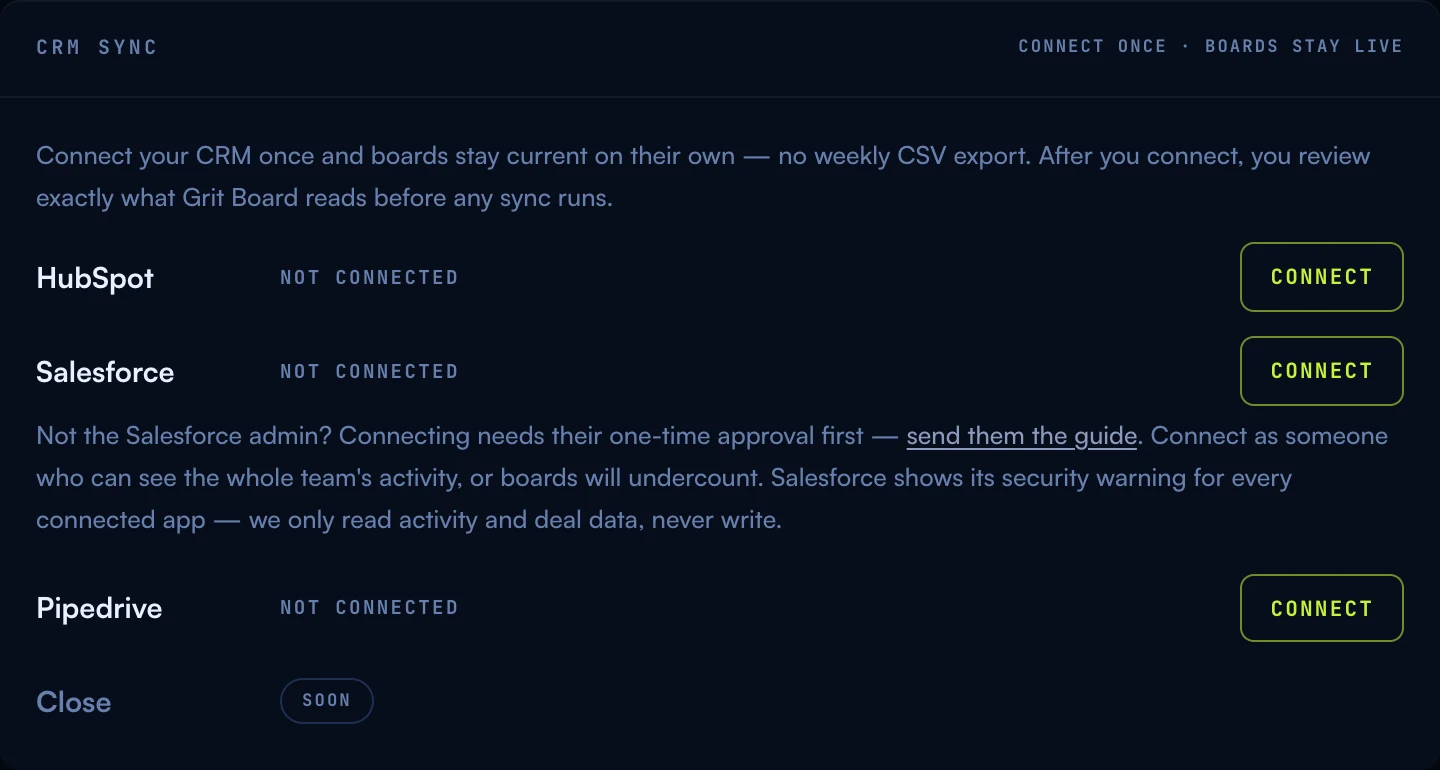
Head to Settings → CRM sync (owner-only) and hit Connect on your CRM. A standard sign-in window opens, you approve read-only access, and you’re connected — one CRM at a time, so the boards always have a single source of truth.
The one decision that matters: connect as a user who can see the whole team’s activity. The sync sees what the connecting user sees — a rep’s login that only sees its own records makes every board silently undercount.
- HubSpot — connect with a user who can view all teams’ activities and deals. No admin pre-approval needed in most portals.
- Salesforce — Salesforce requires a one-time admin approval before any new app can connect. If you’re not the admin, send them the admin guide — it covers the approval steps, the read-only scopes, and which editions include API access.
- Pipedrive — install Grit Board from the Pipedrive Marketplace (the install lands you on this card to finish), or just hit Connect here — both paths end in the same place. Connect as an admin, or a user whose visibility groups cover the whole team’s deals and activities.
02The mapping review
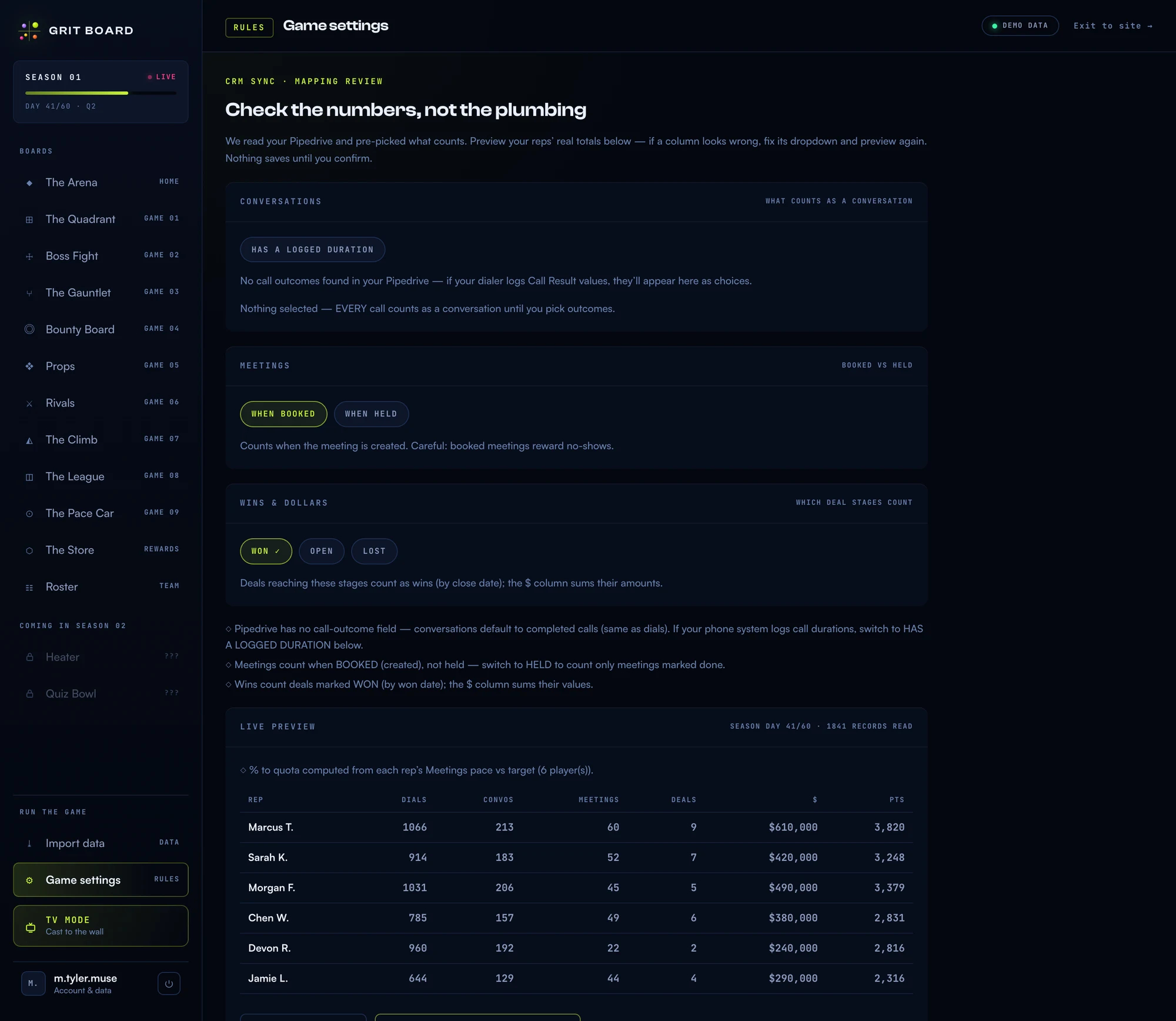
Before a single number reaches a board, Grit Board shows you what it plans to read — pre-filled with sensible defaults, in your CRM’s own vocabulary. Three decisions:
- What counts as a conversation. Pick the call outcomes that mean a real conversation happened — your CRM’s own outcome values (Pipedrive’s native Outcome field included) and, if a dialer logs calls as its own activity types, the “answered call” type. Pick more than one and a call counts when it matches any of them, never twice.
- When a meeting counts. When it’s booked, or only when it’s held. The card is honest about the trade-off: booked meetings reward no-shows.
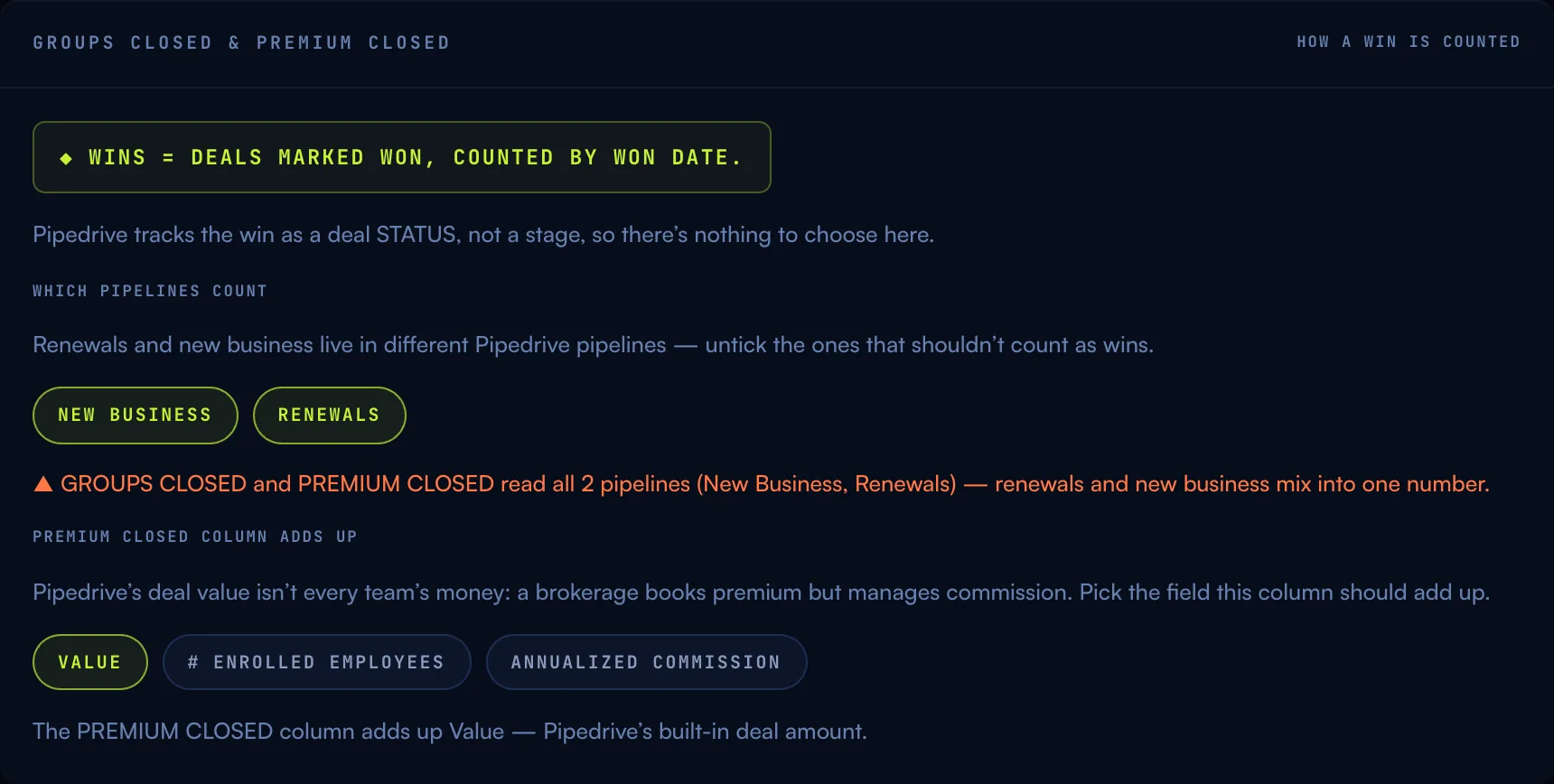
- Which deal stages are wins. Deals reaching those stages count as wins, and the $ column sums their amounts.
- Which pipelines count. If your CRM has more than one pipeline (new business alongside renewals, say), untick the ones that shouldn’t feed the board — a renewals pipeline left ticked mixes into your new-business wins and dollar total whether you meant it to or not.
- What the $ column adds up. Deal value by default, or any other numeric field on the deal your CRM tracks (annualized commission, for example) — pick whichever number your team actually measures a win by. If you’ve renamed the $ metric yourself, your label stays put; otherwise the column’s name follows whichever field you pick.
Then the important part: Preview with my real numbers. The review pulls your reps’ actual totals under the current choices — if a column looks wrong, fix its dropdown and preview again. The preview also states, in plain text, the exact window it’s counting from — Counting [your CRM] activity [start date] → [end date] — day X of Y — with a pointer to where that date lives (Game settings → Season setup), so the numbers on screen are never a mystery about which days they cover. Nothing saves, and nothing syncs, until you confirm. When you do, the first sync runs immediately and every board flips to CRM data.
03Living with the sync
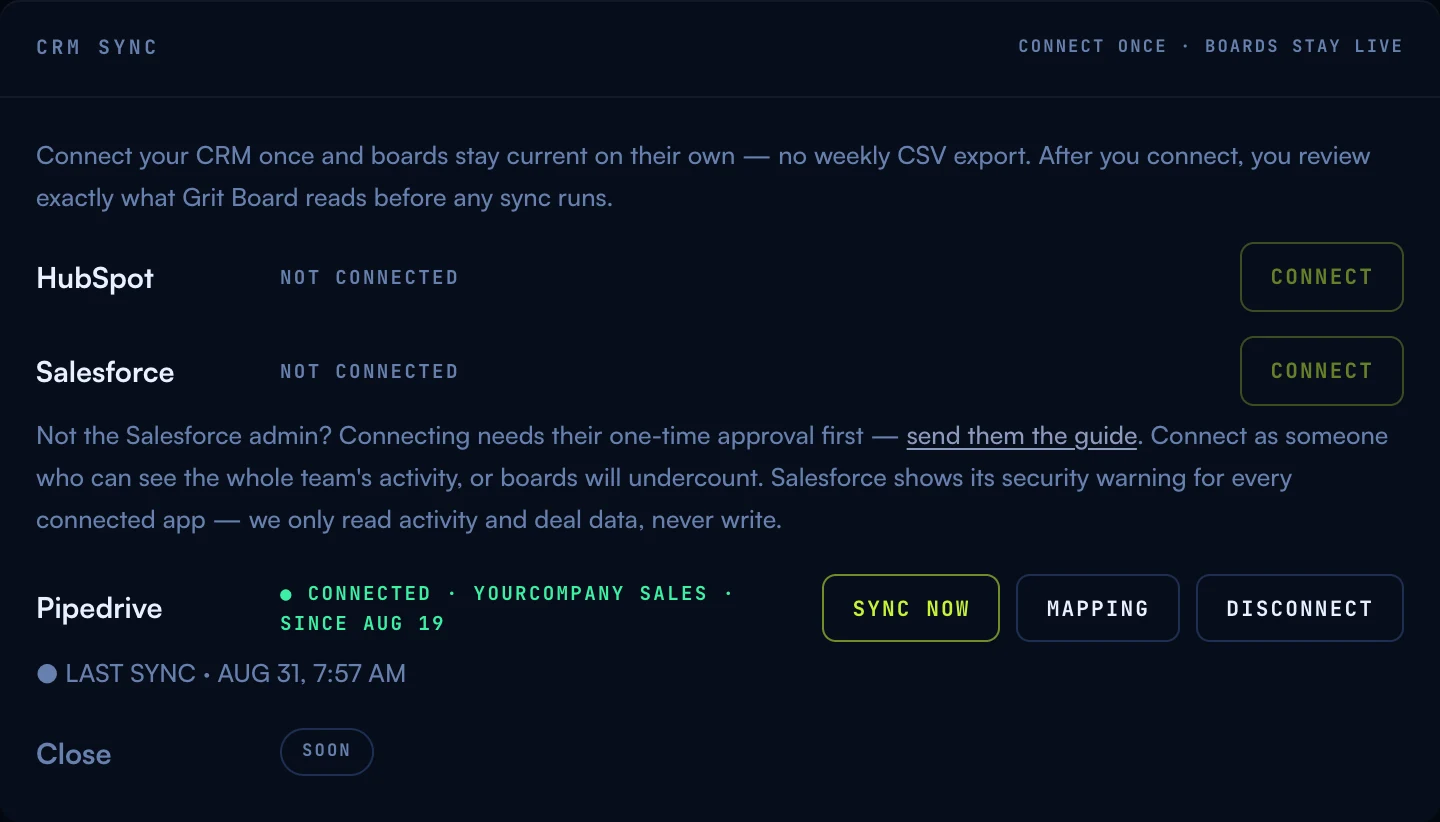
Once confirmed, the sync runs every 6 hours on its own, and Sync now is there when you want the boards current this minute. The card always shows the last sync and whether it succeeded — a scheduled run never fails silently. Mapping reopens the review any time (changes take effect on the next sync), and Disconnect revokes access and deletes the tokens on the spot.
Rep identity works exactly like the CSV path: reps are matched by their CRM user emails, which also powers the YOU highlight for signed-in reps — see players & the roster for the full identity rules.
04Common questions
“What exactly does Grit Board read?” Activities (calls and meetings), deals (stage, amount, close date), and your CRM’s user list to credit the right rep. It never reads emails, notes, or message content — and it never writes anything.
“The preview numbers don’t match my reports.” Almost always a mapping choice — a call outcome that shouldn’t count, or meetings counted at booked instead of held. Adjust the dropdowns and preview again; the numbers update against your live data before anything saves.
“Can I still upload a CSV?” Yes — imports keep working and follow the same identity rules. But with a healthy sync you shouldn’t need to; two data paths for the same season is a recipe for confusion.
“How do I revoke access?” Disconnect in the card (tokens are deleted immediately) — or revoke from your CRM’s side; either fully cuts access.
More questions? Write to hello@gritboard.io — a human reads it. See also the security overview.